Prefer us to book you in? Call 548-689-9135 or send us a message on Facebook, Instagram or TikTok. We can help you choose a service and time, and book your appointment for you.
This guide shows a booking for one person on a computer. The layout may look different on your phone. Tap or click a screenshot to open the full-size image in a new tab.
1. Open our online booking page
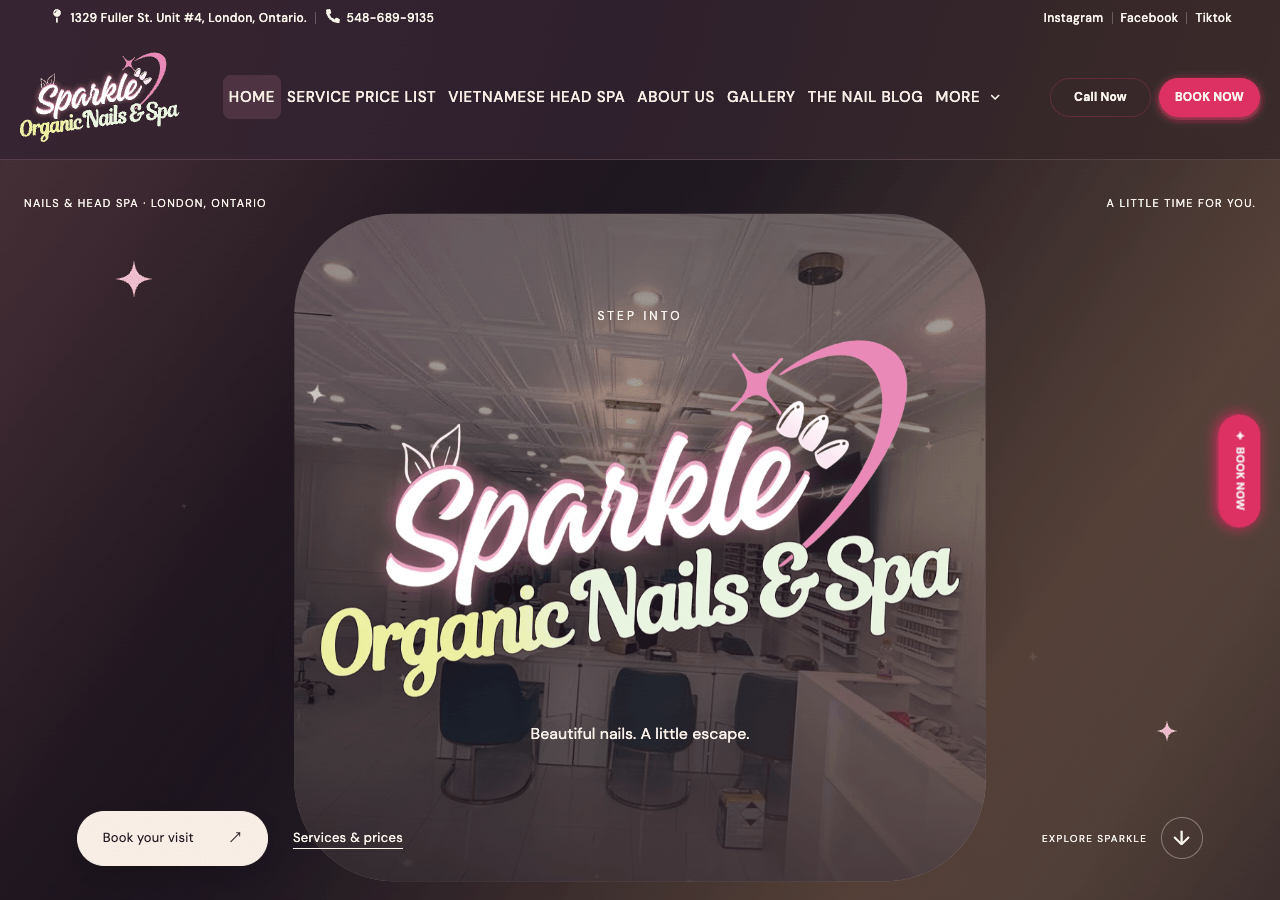
Visit sparkleorganicnails.ca and click Book Now or Book your visit. This opens our Belle Booking page.
See where to start on the Sparkle website
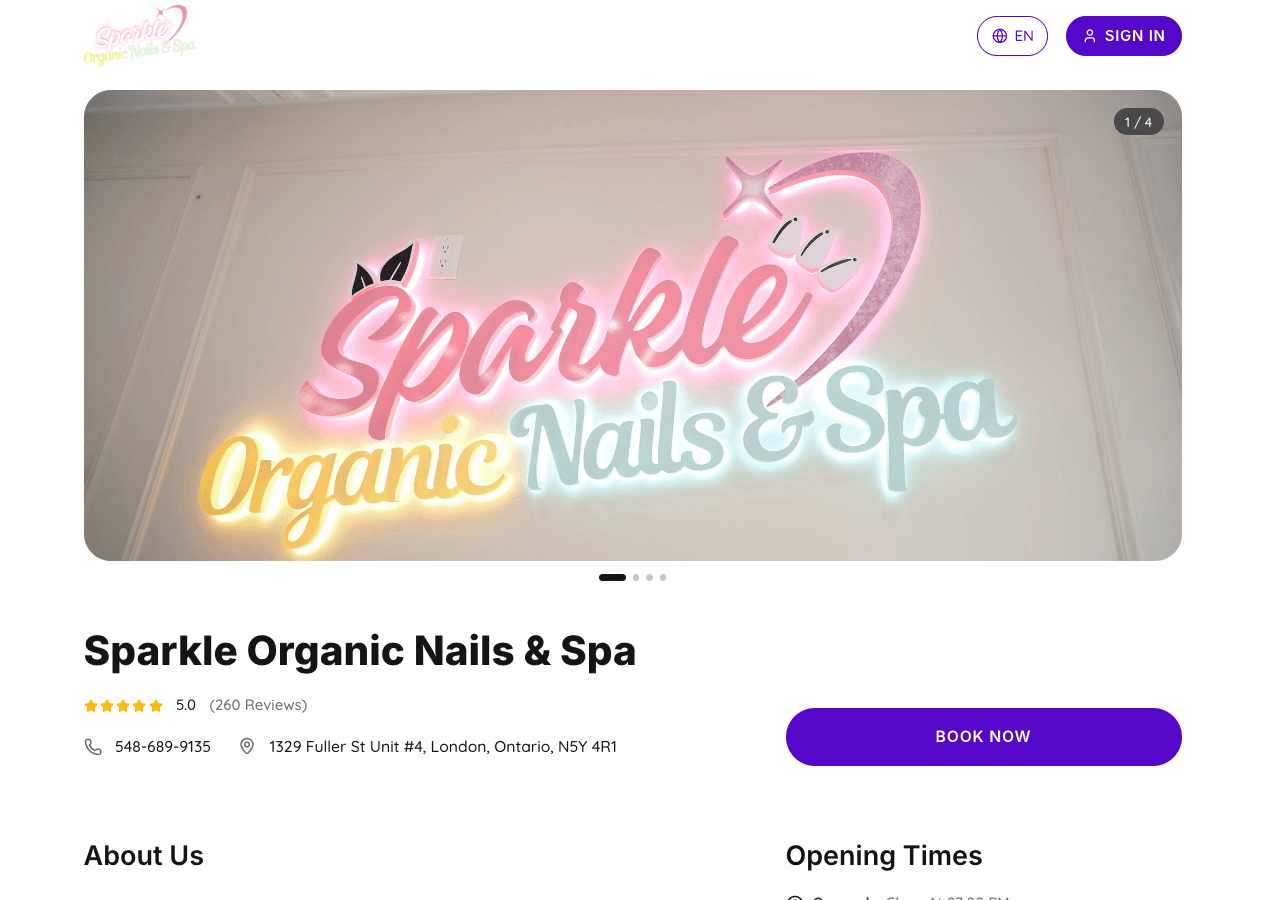
You can also go straight to our booking page. Check that it says Sparkle Organic Nails & Spa, at 1329 Fuller St., Unit #4, London, then click the purple Book Now button.
2. Read the policy and choose one person
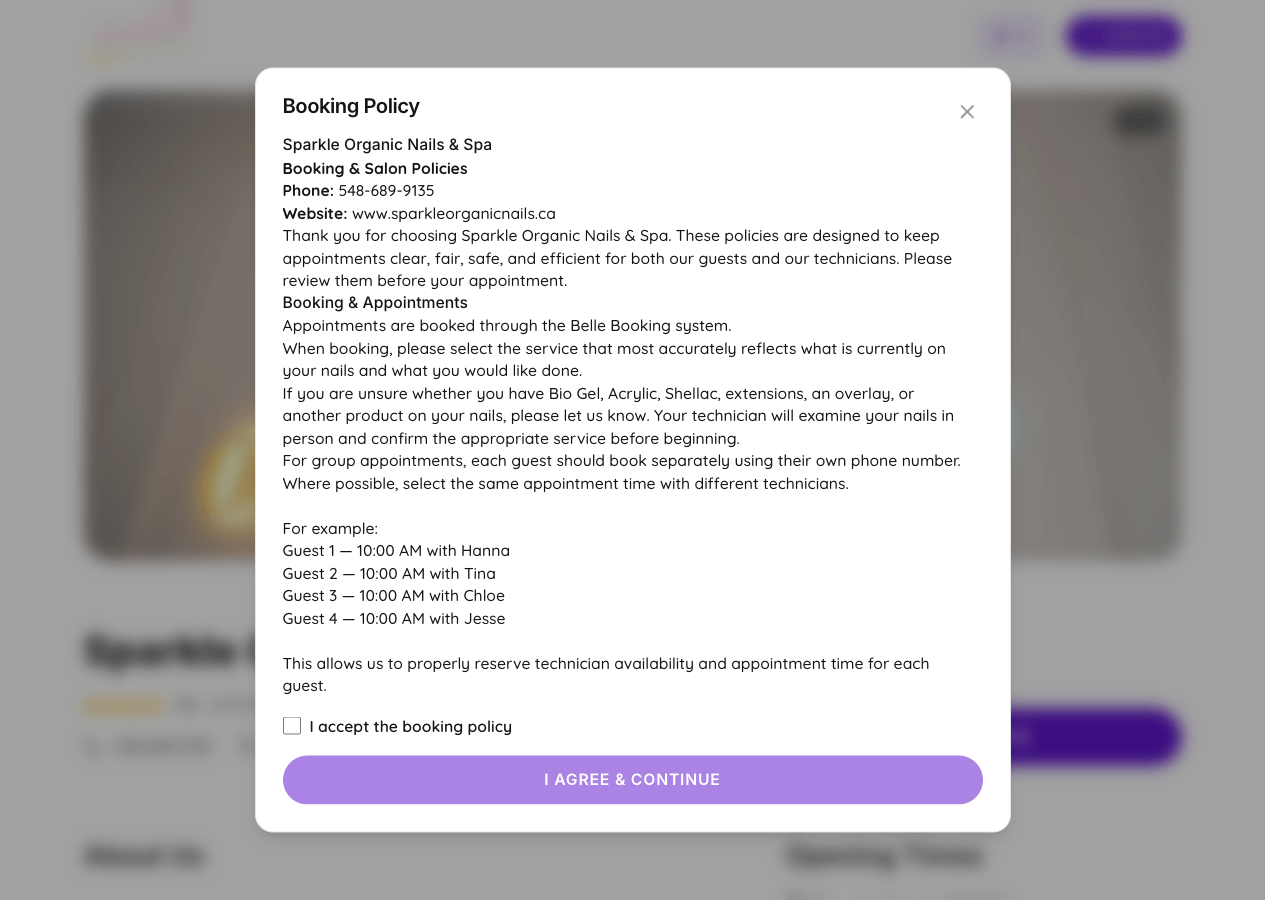
The Booking Policy window appears first. Scroll through the policies. If you agree, check I accept the booking policy, then click I Agree & Continue.
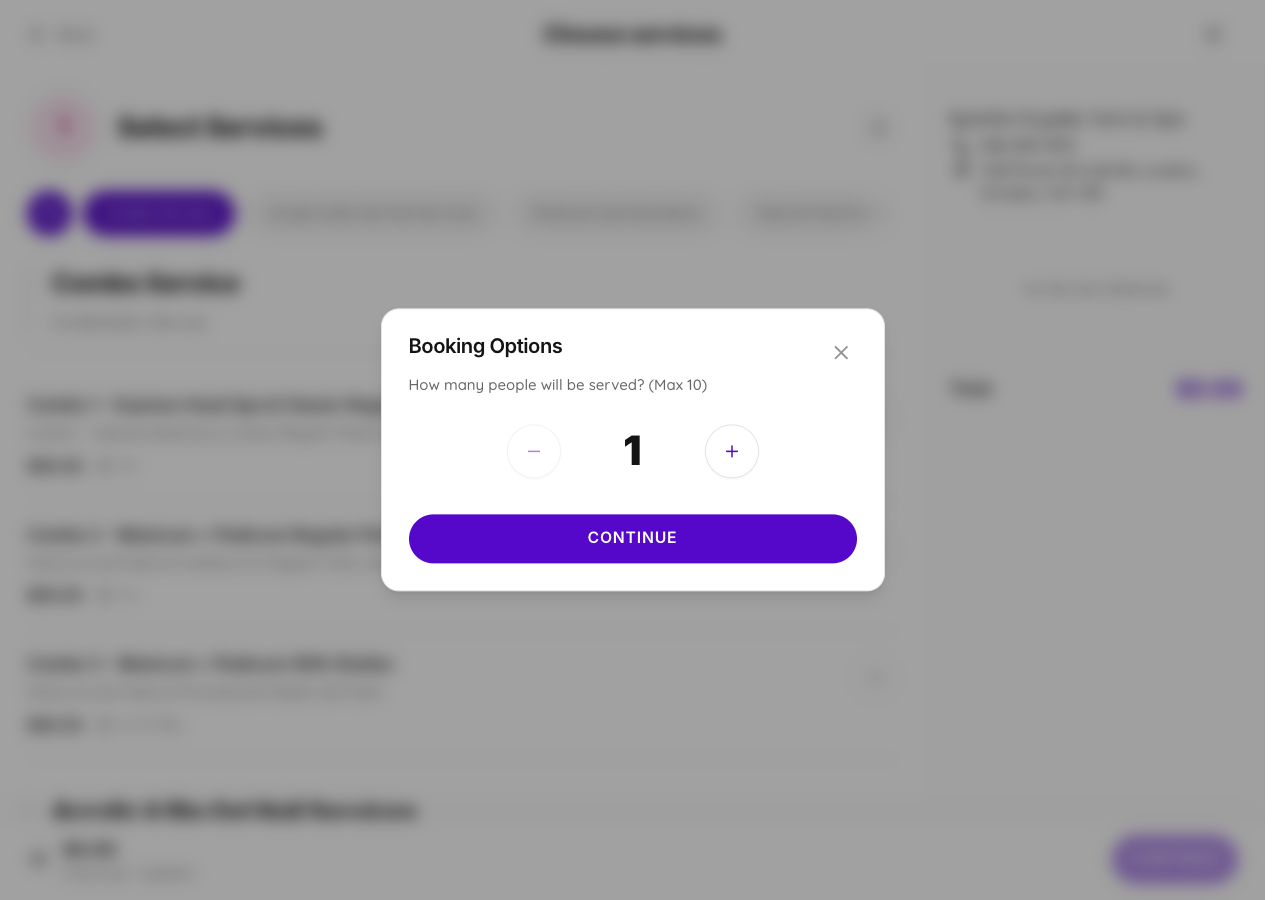
Next, the Booking Options window asks how many people will be served. For your own appointment, leave it at 1 and click Continue.
See the number-of-people screen
Booking with friends? Our policy asks each guest to book separately using their own phone number. Where available, choose the same time with different technicians. You can also call us or message us on Facebook, Instagram or TikTok, and we can help book you in.
3. Choose your service
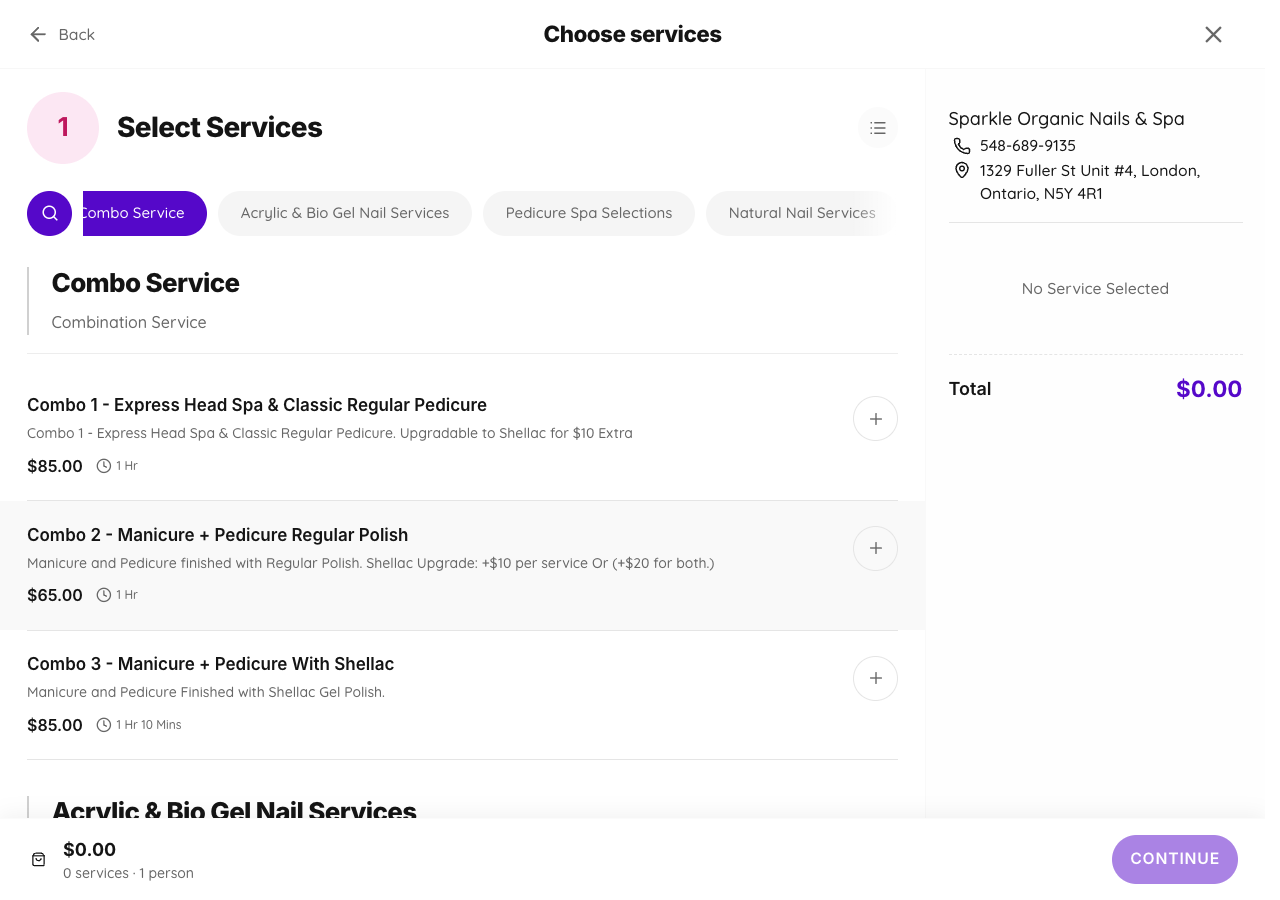
On Choose services, browse the categories, such as Natural Nail Services, Pedicure Spa Selections or Vietnamese Head Spa. You can also use the magnifying-glass search button.
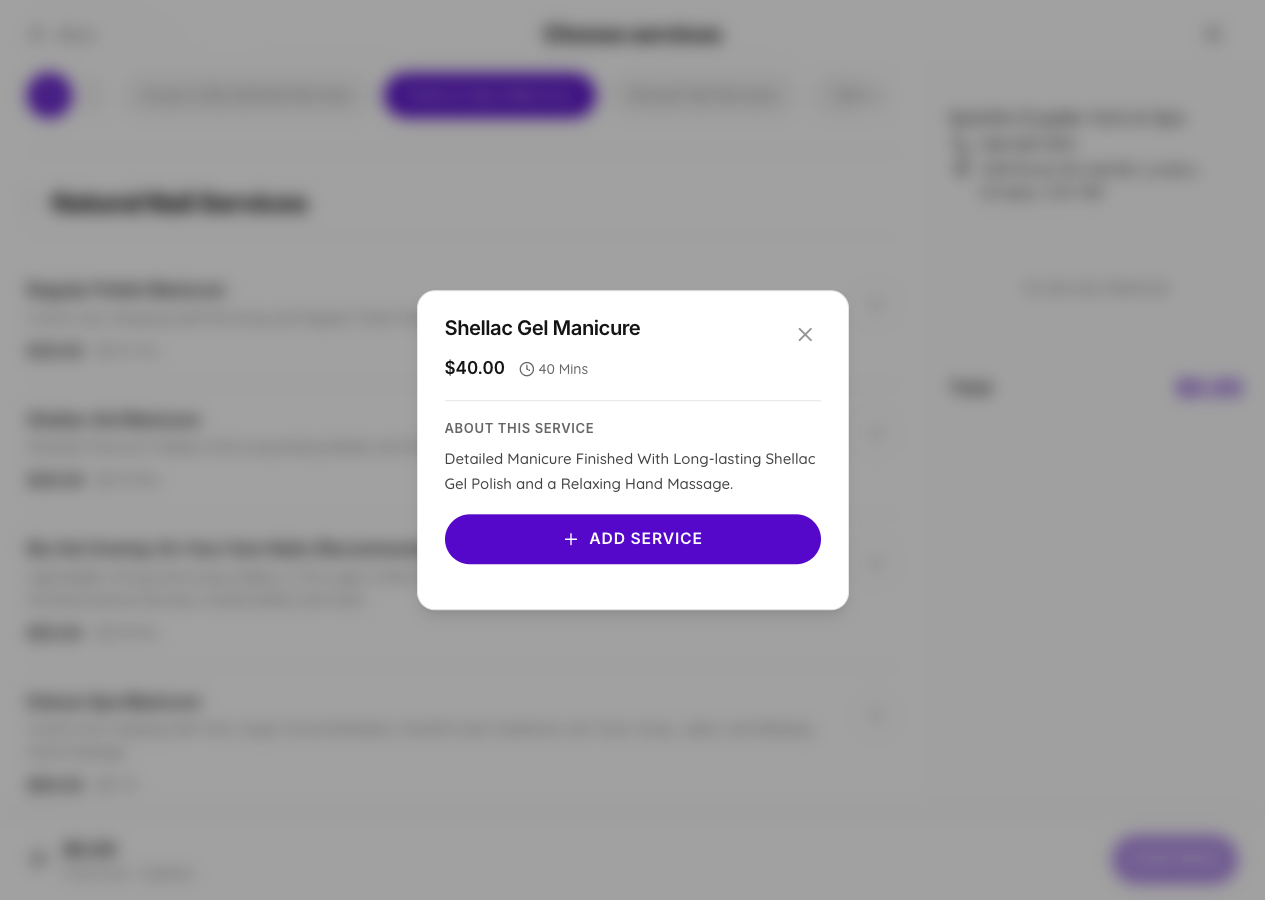
Read the service description, price and duration. Click Add Service to add it to your appointment. These screenshots use Shellac Gel Manicure as an example; choose the service that fits your visit.
See the Add Service button
Not sure which service to choose? Consider what is already on your nails, including Bio Gel, acrylic or extensions. Call or message us for help choosing before you book.
4. Choose any extras and check your services
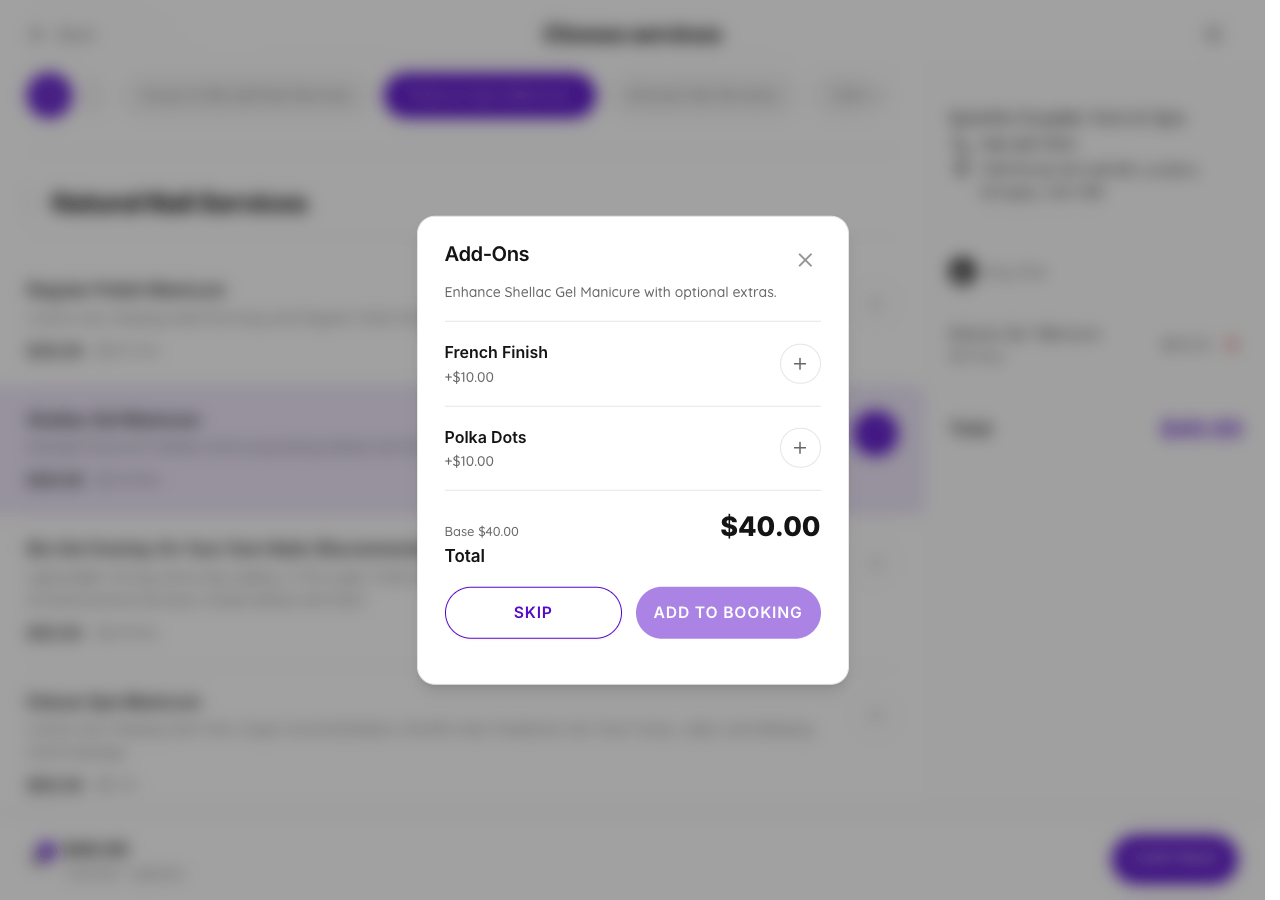
Some services offer an Add-Ons window. Select any extras you want, then choose Add to Booking. If you do not want extras, click Skip.
Check the services and total in your booking summary. When your selection is correct, click Continue.
See a selected service and booking summary
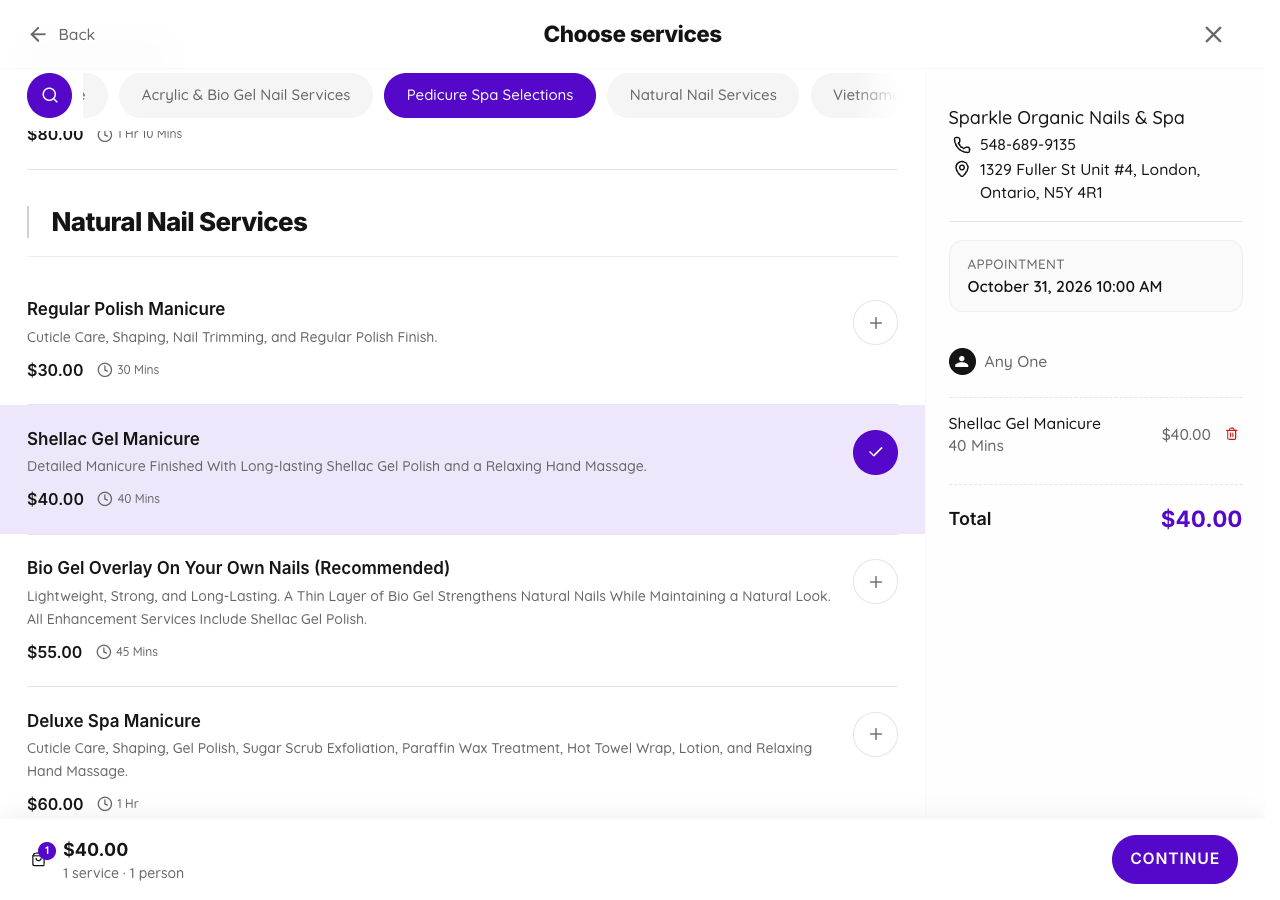
Prices in the screenshots are examples from the day this guide was made. Use the current booking menu. Your technician will explain any necessary service or price changes before beginning.
5. Choose your technician
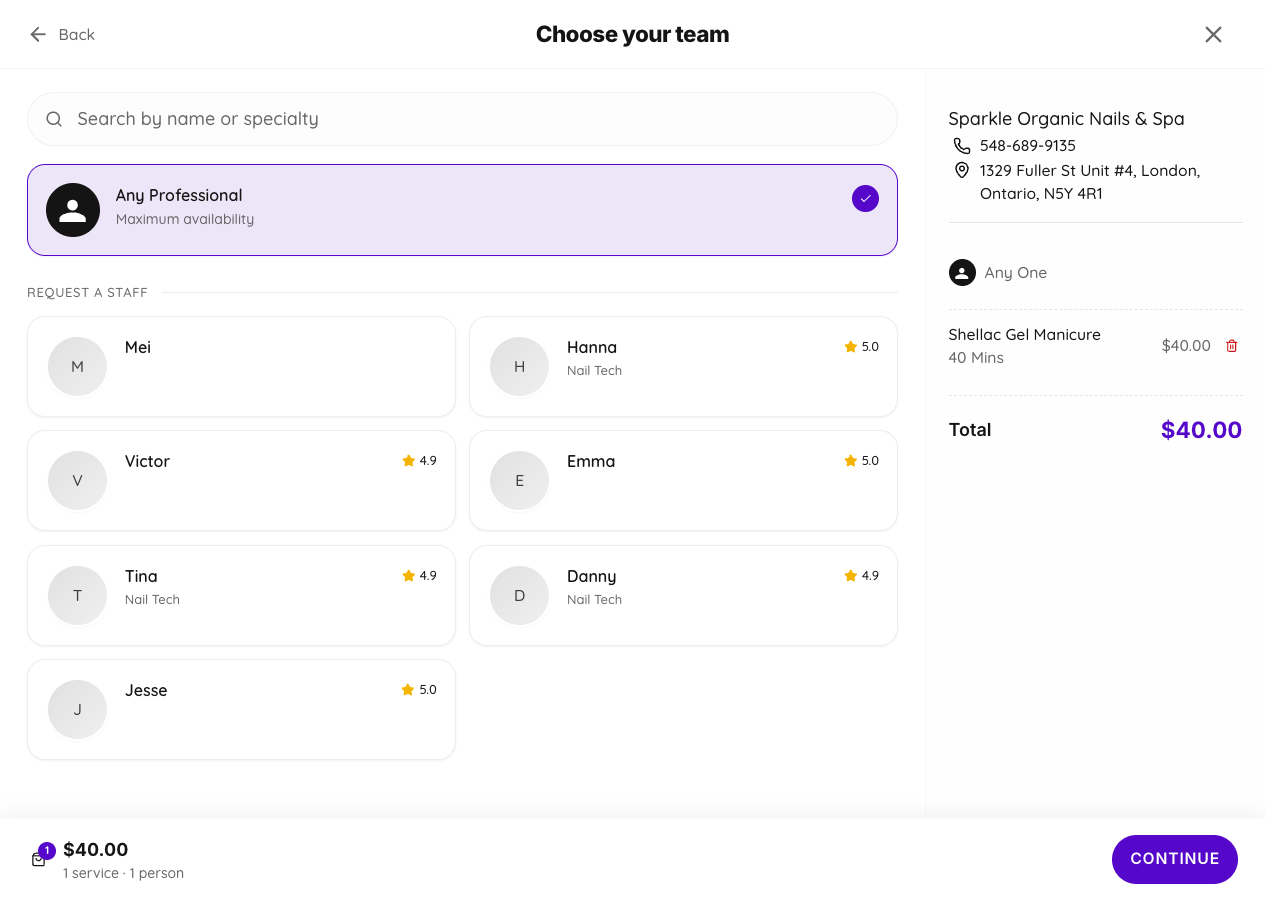
On Choose your team, leave Any Professional selected if you have no preference. To request someone, click Any Professional and select a name from the list. Click Continue when you are ready.
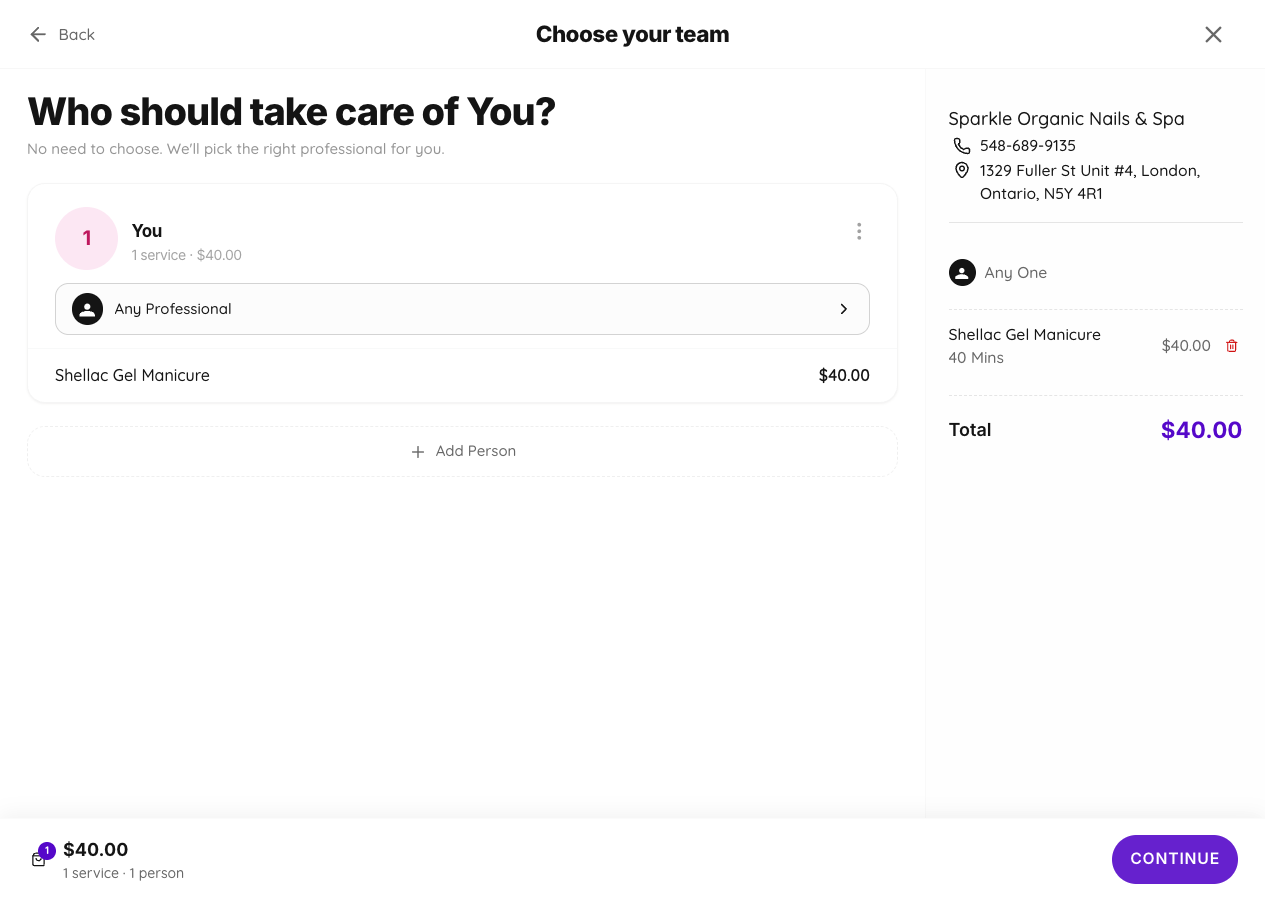
See the technician choices
6. Pick your date and time
On Pick a time, select your preferred date. Use the arrows or calendar icon to see more dates. Then select one of the Available Times and click Continue.
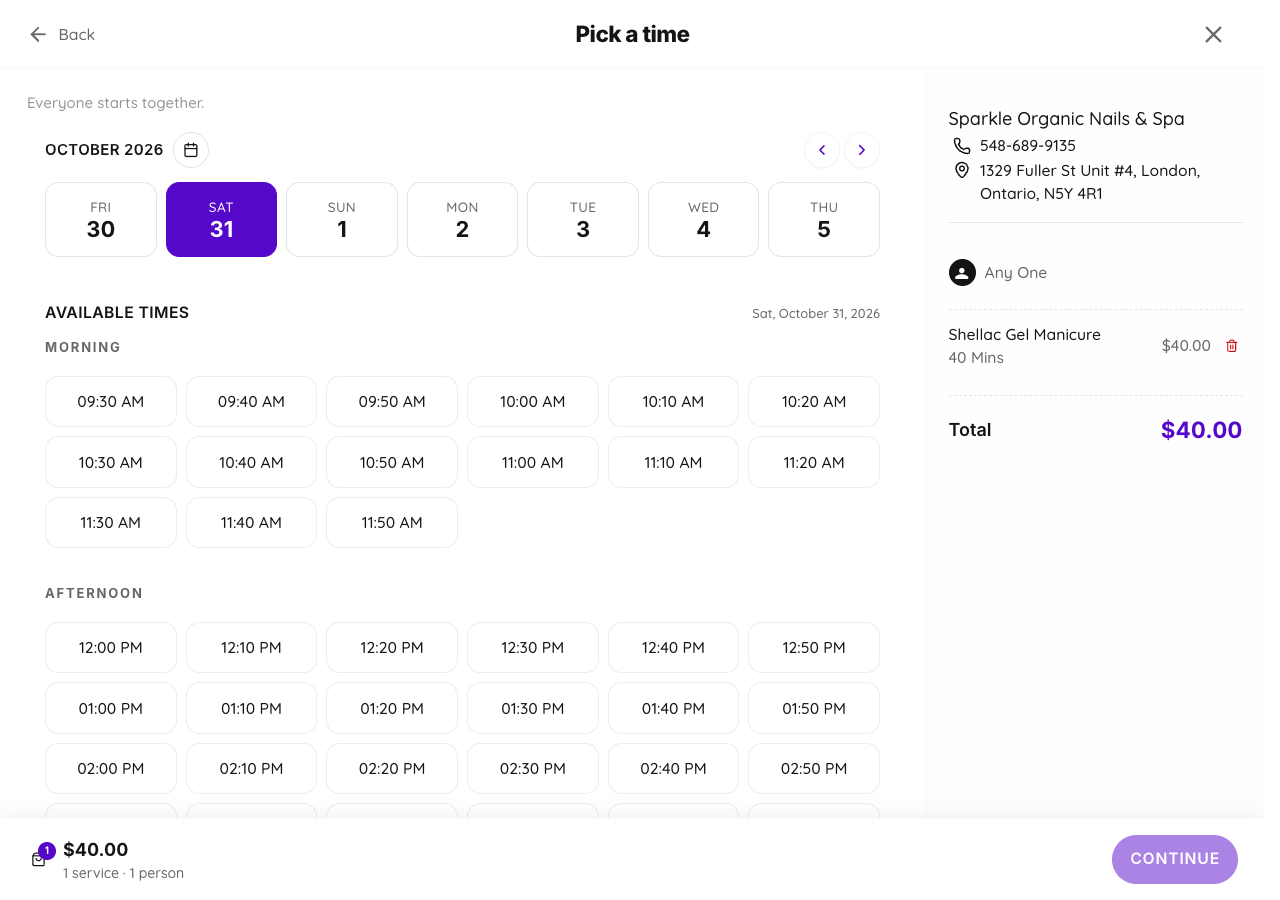
If you cannot find a time that works, try another date or technician. You can also call 548-689-9135 or message us on Facebook, Instagram or TikTok, and we can help arrange your booking.
7. Verify your phone number or email
If you are asked to Sign in or Sign up, choose Phone Number or Email and enter your own details. For a Canadian phone number, check that the country code is +1.
Read the consent statement about appointment notifications, the terms, privacy policy and account creation. If you agree, tick the checkbox and click Continue. Belle will send you a verification code; enter it when prompted.
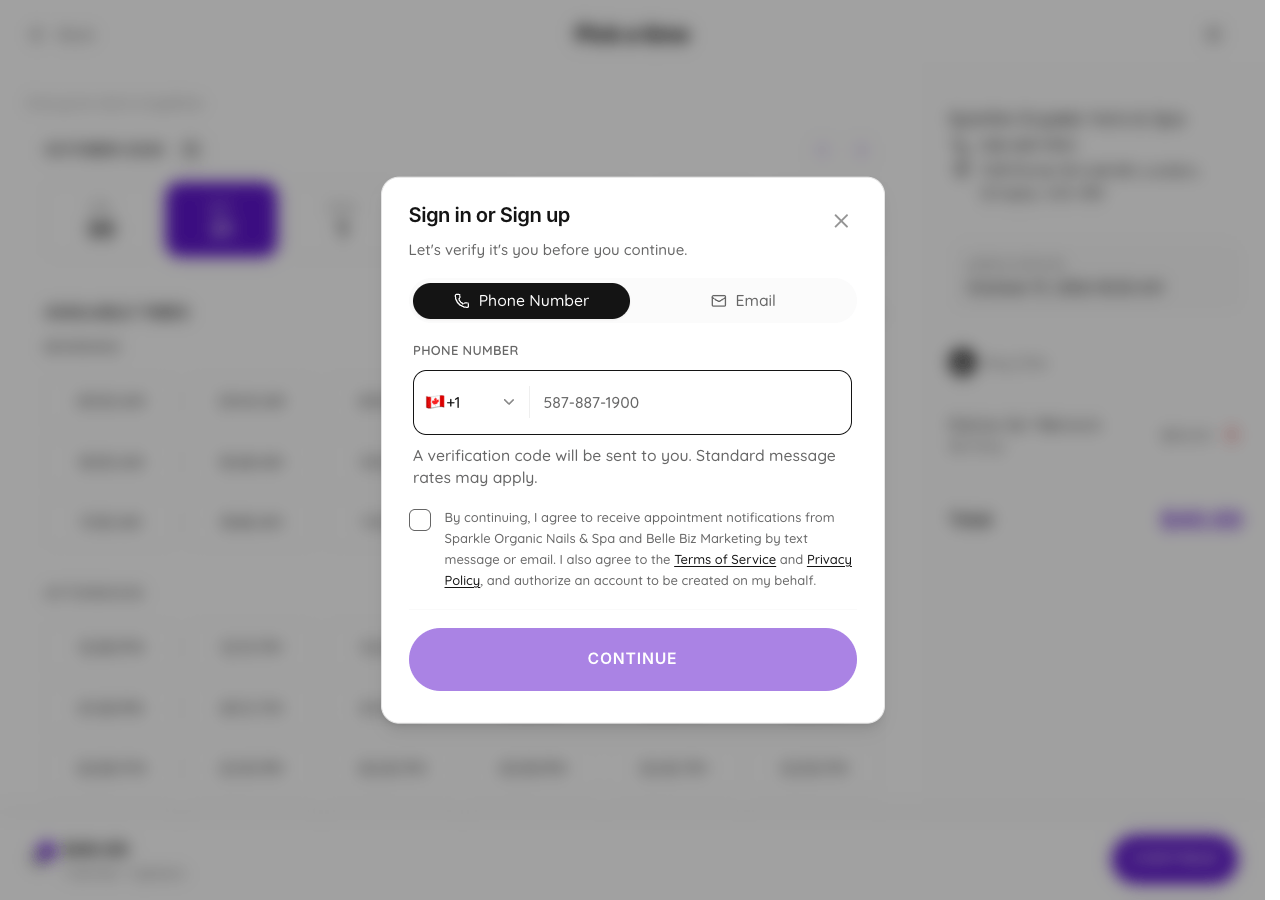
Prefer to verify by email?
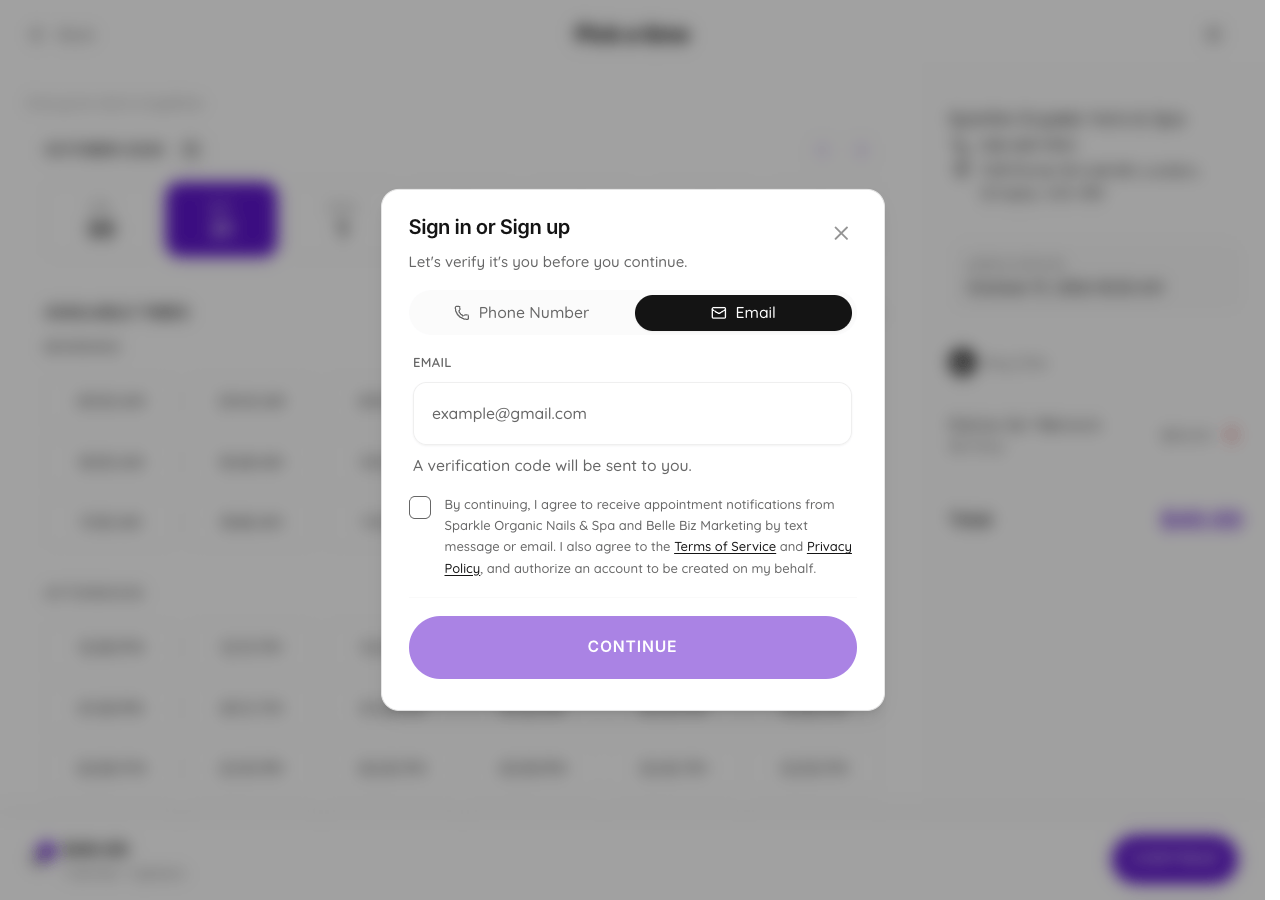
The verification code is a sign-in step. Continue through the remaining booking prompts to finish your appointment.
8. Finish your booking and look for your SMS
Follow the remaining on-screen prompts to complete your booking. Before submitting it, check your chosen services, technician, date, time and contact details.
Once your booking is complete, you will receive an SMS text message. Keep that message handy for your appointment.
If you do not receive the text or are unsure whether your booking went through, call us at 548-689-9135 or message us on Facebook, Instagram or TikTok. We can check the booking for you.
We can book you in too
Call or message us to book
If online booking is giving you trouble—or you would simply like some help—call us or send a message. Let us know the service you want, your preferred day and time, and whether you would like a particular technician. We can help arrange your appointment.
Call 548-689-9135 · Facebook · Instagram · TikTok
Sparkle Organic Nails & Spa
1329 Fuller St., Unit #4, London, Ontario
Screenshots captured October 30, 2026. Services, prices and availability may change.